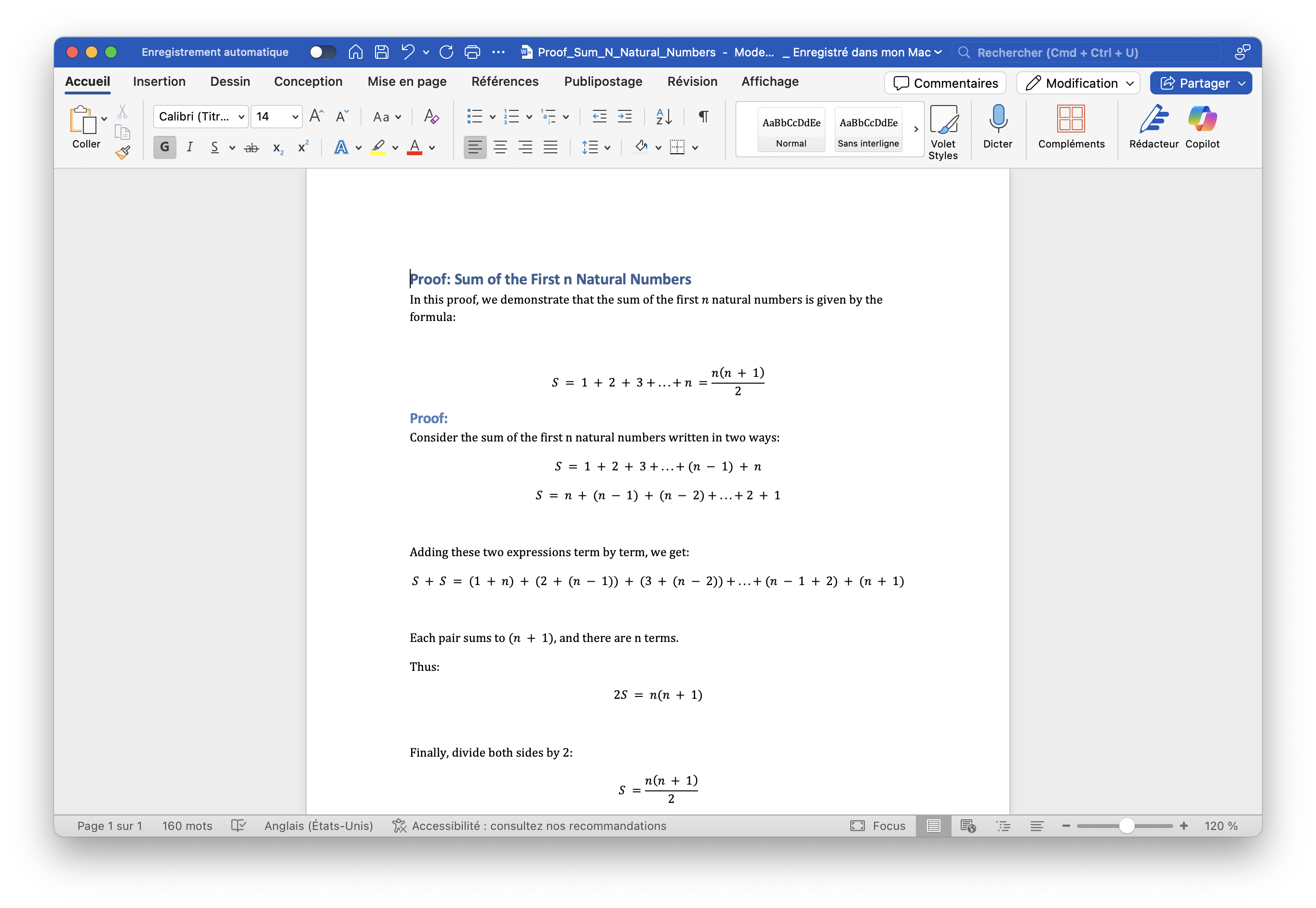
How to Quickly Type Math Equations with Word and AutoMath
Typing math equations on a computer can quickly become frustrating. Searching for the right symbols and dealing with formatting issues often breaks your train of thought. As someone with dysgraphia, I struggled for a long time to find an easy and efficient solution for taking math notes on a computer. Eventually, I discovered Microsoft Word’s AutoMath system, which made writing math clear and effortless.
In this article, I’ll explain how to use Word and its AutoMath feature to type math equations quickly. Whether you’re in high school, university, or simply looking for an efficient way to take math notes, this guide will help you.
Why Choose Word and AutoMath for Math Notes?
Before switching to LaTeX, I relied heavily on Microsoft Word for my math notes in high school. The main reason?
Word offers a WYSIWYG (What You See Is What You Get) interface—you immediately see what you type, without the need for compilation.
With AutoMath, typing equations becomes natural, almost like writing on paper, but with the added benefits of digital editing.
What Is AutoMath?
AutoMath is a feature in Word that automatically converts text expressions into formatted math equations.
For example, if you type:
(1/2)x^2
Word automatically transforms it into:
$$\frac{1}{2}x^2$$
This makes the process quick, smooth, and intuitive, especially if you’re not yet familiar with LaTeX.

How to Enable AutoMath in Word
1. Open Word
Make sure you’re using Microsoft Word 2016 or a newer version. Older versions may lack some features.
2. Activate AutoMath (Automatic Equation Replacement)
The exact steps may vary slightly depending on your OS and Word version, but the principle is the same: enable the auto-correct options for math.
On macOS (latest Word version):
- Go to Word > Preferences > AutoCorrect
- Select the AutoMath tab
- Enable Replace text as you type
On Windows (latest Word version):
- Go to File > Options
- Select Proofing > AutoCorrect Options
- Open the AutoCorrect As You Type tab
- Enable Replace math symbols with their equivalents
3. Customize Your Shortcuts in AutoMath
Once inside AutoCorrect Options, you can create or modify your math shortcuts.
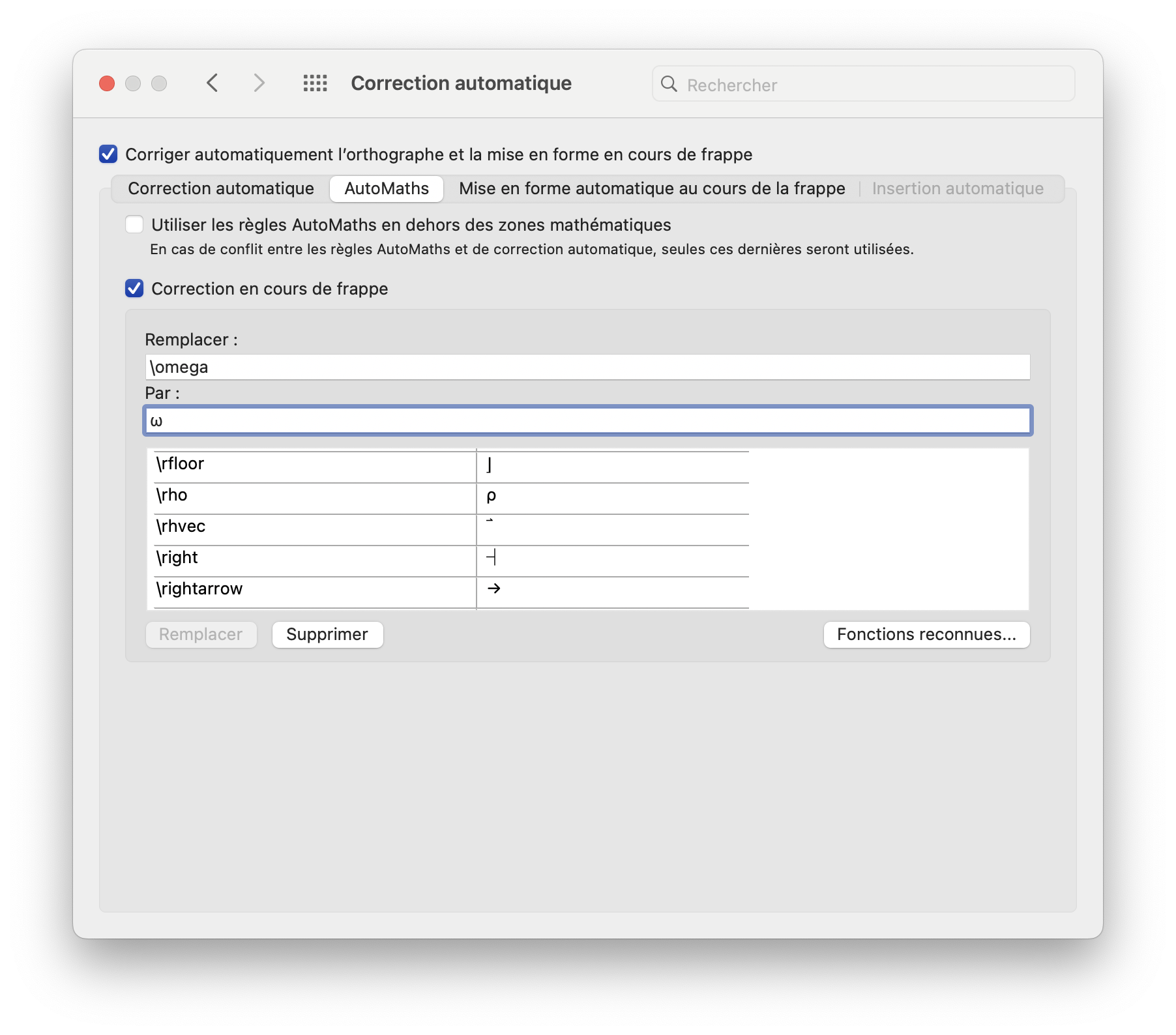
Step-by-Step Guide:
-
In the Replace column
➔ Type the shortcut you want to use
➔ Example:omega -
In the With column
➔ Enter the symbol or expression you want to appear
➔ Example:ω
💡 Tip:
- Review existing shortcuts and adjust them for more intuitive keywords
- Add new shortcuts that fit your workflow
Download My Custom Shortcuts for macOS:
How to Install It on macOS:
- Open Finder
- In the menu bar, click Go, then hold Option (Alt)
- Select Library from the dropdown
- Navigate to:
Group Containers > UBF8T346G9.Office - Move the downloaded file into this folder.
If a file with the same name exists, replace it only if you’re sure you no longer need the old one.
For Windows users, there’s currently no simple way to import shortcuts automatically. You’ll need to enter them manually in Word’s AutoCorrect Options. It takes some time, but you only have to do it once.
Training for LaTeX Users:
- Keep shortcuts similar to LaTeX syntax, but drop the backslash
\. - Example: type
omegainstead of\omega, and AutoMath will display ω.
This helps you memorize LaTeX commands while keeping things simple in Word.
4. Use the Shortcut Alt + =
Press Alt + = (or Option + = on Mac) to insert an equation box. Start typing your math expressions—AutoMath takes care of the formatting!
Practical Examples with AutoMath
| What You Type | What Word Displays Automatically |
|---|---|
x^2 + y^2 = z^2 |
$x^2 + y^2 = z^2$ |
int x dx |
$\int x dx$ |
sum_(i=1)^n i^2 |
$\sum_{i=1}^{n} i^2$ |
(a+b)/(c+d) |
$\frac{(a + b)}{(c + d)}$ |
Tips for Fast Note-Taking with Word and AutoMath
- Keyboard shortcuts: Learn
Alt + =to quickly insert equations. - Be methodical: Keep your formulas clean and structured.
- Customize frequently used shortcuts to save time.
AutoMath Limitations… and Why Switch to LaTeX Later
While Word and AutoMath are perfect for getting started or taking quick notes, they have limits when:
- Writing long documents (e.g., theses, research papers)
- Managing complex cross-references
- Requiring precise control over formatting
That’s when LaTeX becomes the more powerful alternative, although it requires a steeper learning curve. I don’t necessarily recommend switching to LaTeX during high school—AutoMath worked fine for me without any issues. But at university, LaTeX becomes a key tool for academic writing and scientific reports.
Conclusion
If you’re looking for a simple, fast, and effective way to type math on your computer, Word with AutoMath is an excellent starting point. It allowed me to take all my math notes directly on my computer throughout high school, even with dysgraphia, and stay focused on the content instead of the formatting.