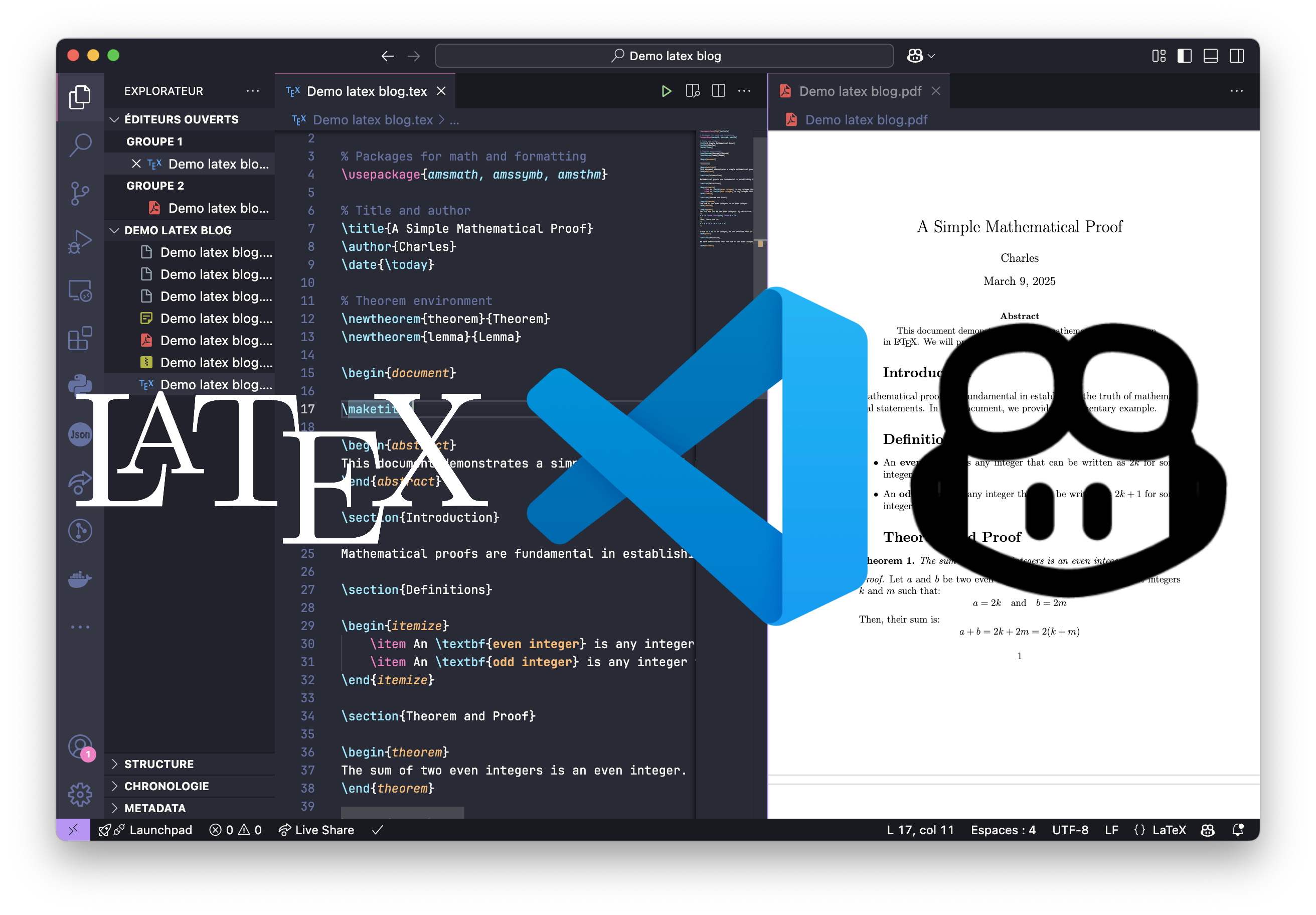
Writing math on a computer can be frustrating, especially when it disrupts your thought process. Since handwriting has never been my strong suit, I’ve always preferred taking notes digitally. In high school, I relied on Word, but I soon realized that LaTeX offers more flexibility, better formatting, and a cleaner workflow—if set up correctly.
This guide will help you set up an efficient LaTeX workflow using VS Code, GitHub Copilot, and snippets, allowing you to write equations faster and focus more on thinking rather than formatting.
What You’ll Learn
This guide is structured into three key steps, which you can follow in order or skip if you’ve already set up some tools:
Step 1: Install VS Code & LaTeX on your system
Step 2: Configure VS Code with GitHub Copilot for AI-powered assistance
Step 3: Use snippets to speed up LaTeX writing and make it feel natural
If you’re tired of Overleaf’s lag or struggling with LaTeX’s syntax, this guide will help you build a faster, offline-friendly, and more flexible workflow. Let’s get started! 🚀
Why Use VS Code and Copilot?
At first glance, it might seem unnecessary to learn a new language and use a coding-oriented software just to write documents. However, VS Code offers several advantages over Word and Overleaf.
Here are some of the advantages of VS Code:
- Speed: VS Code is lightweight, fast, and highly customizable.
- AI Assistance: GitHub Copilot suggests LaTeX snippets, templates, and fixes in real-time.
- Free for Students: VSCode is free and GitHub Copilot is free with a verified student account.
- Offline Capability: Unlike Overleaf, this setup works without an internet connection.
- Advanced Features: Supports powerful extensions like LaTeX Workshop for seamless compilation and preview.
Installing LaTeX on Your System
Before installing VS Code, you’ll need a LaTeX distribution. Here’s how to install it depending on your OS:
macOS / Linux
# Install LaTeXmk on Linux/Mac
brew install latexmk  # For macOS
sudo apt install latexmk  # For Debian/Ubuntu
sudo dnf install latexmk  # For Fedora
Windows
- Install MiKTeX:
- Download it from the official website.
- Follow the installation instructions.
- Install LaTeXmk:
- Open MiKTeX Console, go to “Packages,” and search for “latexmk.”
- Click “Install.”
Installing VS Code
Once you’ve installed latex, you’ll need to download VS Code and install/configure the extensions.
- Download VS Code:
- Visit the official website and install VS Code for your OS.
- Install Extensions:
- Open VS Code.
- Go to the Extensions Marketplace (Ctrl+Shift+X or Cmd+Shift+X on macOS).
- Search for “LaTeX Workshop” and click Install.
Repeat the process for the Math Snippets and Ultra Math Preview extensions
- Configure LaTeX Workshop:
-
Open settings.json via File > Preferences > Settings.
-
Add the following configuration:
"latex-workshop.latex.tools": [
  {
    "name": "latexmk",
    "command": "latexmk",
    "args": [
      "-synctex=1",
      "-interaction=nonstopmode",
      "-file-line-error",
      "%DOC%"
    ]
  }
],
"latex-workshop.latex.recipes": [
  {
    "name": "latexmk",
    "tools": ["latexmk"]
  }
]
-
Setting Up GitHub Copilot (Optional)
This step is optional if you don’t have a GitHub subscription. Additionally, keep in mind that we don’t fully know how GitHub handles Copilot’s data. You might not want sensitive information to be sent.
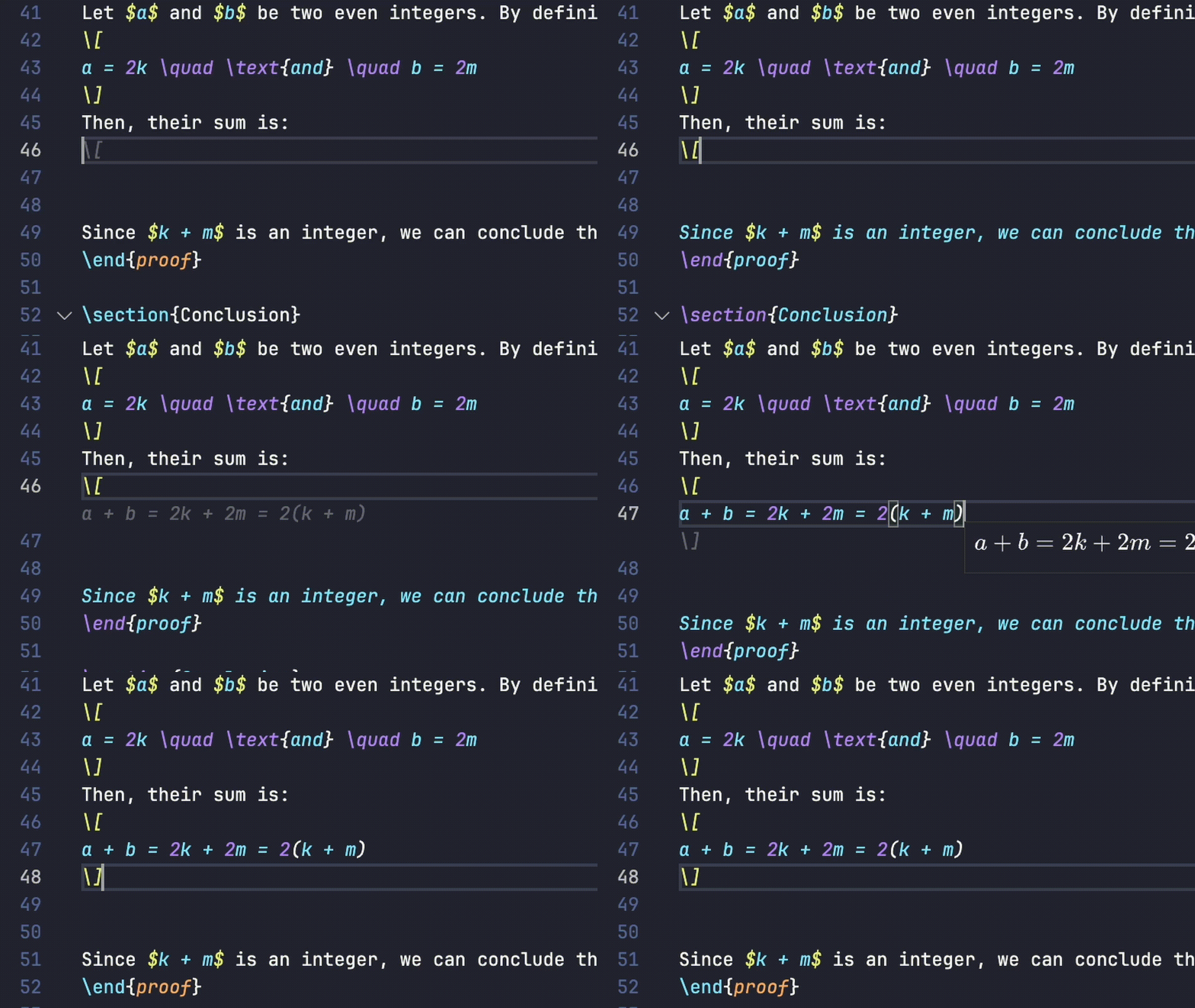
Once you have VS Code installed, you can integrate Copilot to speed up your LaTeX writing. With Copilot, you no longer need to Google LaTeX commands—it suggests the correct syntax instantly, saving you time and effort.
- Install GitHub Copilot Extension:
- In Extensions Marketplace, search for “GitHub Copilot” and install it.
- Log In to GitHub:
- Follow the prompts to authenticate your GitHub account.
- Ensure your student account is verified for free access (GitHub Education Pack).
- Use Copilot:
- Start typing LaTeX commands, and Copilot suggests code snippets in real-time.
- Press Tab to accept a suggestion.
- To manually invoke Copilot suggestions:
- macOS: Cmd + I
- Windows/Linux: Ctrl + I
Testing Your Setup
-
Create a new LaTeX file:
- Save it as test.tex.
-
Write basic LaTeX content:
\documentclass{article} \begin{document} Hello, LaTeX with Copilot! \end{document} -
Build the document:
- Open the command palette (Cmd+Shift+P or Ctrl+Shift+P).
- Search for “Build LaTeX project” and run it.
-
Preview the PDF:
- LaTeX Workshop provides an integrated viewer.
For an Overleaf-like experience, open the PDF preview in VS Code and dock it to one side for real-time updates.
To preview the PDF, click on the PDF logo in the sidebar and drag the PDF to the right or left to create a side-by-side layout
Boosting Productivity with Snippets
For a long time, typing math on a computer felt disruptive, forcing me to pause my reasoning just to find the right symbols. Word’s AutoMath system, with its WYSIWYG approach, helped me type math naturally and understand LaTeX’s logic.
I really wanted to use LaTeX, but the constant need for \ in LaTeX kept me away. When I learned that VS Code allowed a similar experience with snippets, I switched immediately. Now, I can type math as I think, without worrying about formatting, letting me focus entirely on problem-solving.
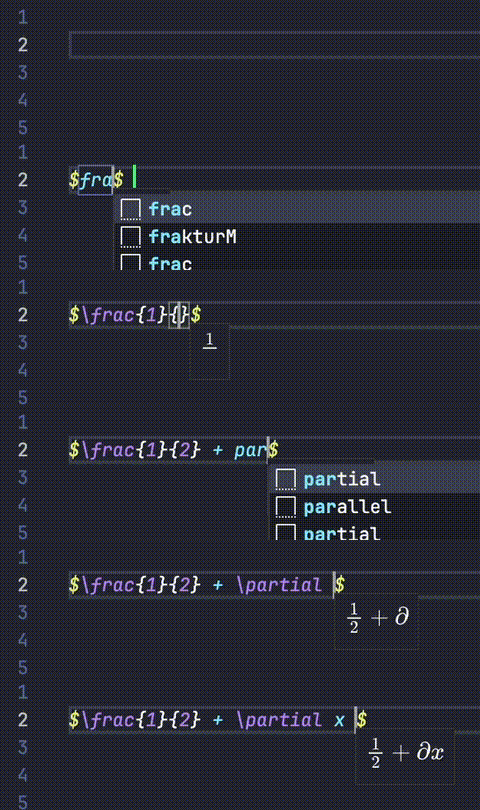
Snippets allow you to type math naturally by auto-completing common LaTeX structures, such as equations and tables.
Why Use Snippets?
- Speed : Insert complex structures with just a few keystrokes.
- Consistency: Ensures uniform formatting in all your documents.
- Customization: Tailor snippets to your specific needs.
How to Add Snippets in VS Code
Open the Snippets Configuration
- Open VS Code.
- Press
Ctrl + Shift + P(Windows/Linux) orCmd + Shift + P(Mac) to open the command palette. - Search for
Preferences: Configure User Snippetsand select it.
Create or Edit a Snippet File
- Select LaTeX or create a new global snippet file.
- A JSON file will open where you can define your snippets.
Add Your Custom Snippet
Each snippet consists of:
- Prefix: The keyword you type in VS Code to trigger the snippet.
- Body: The replacement text that will be inserted.
Important: In the body, you need to escape backslashes by adding an extra \. For example, \\alpha instead of \alpha.
You can also use variables like $1, $2 to create placeholders inside the snippet for easy customization.
Here’s an example snippet for a LaTeX fraction:
"fraction": {
  "prefix": "frac",
  "body": ["\\frac{$1}{$2}"],
  "description": "Insert a fraction"
}
📂 Quick Download
Here’s a link to my personal file if you want to save time:
Save and Use the Snippet
- Save the JSON file.
- In a LaTeX file, type
fracand pressTaborEnter→ The fraction structure will be inserted automatically.
Setting up LaTeX locally with VS Code, Copilot, and snippets might seem like extra work at first, but the long-term benefits are undeniable. Once you get used to this workflow, you’ll never want to go back to Overleaf. Whether you’re a student taking math-heavy notes or a researcher writing papers, this setup gives you full control over your work—without the lag, distractions, or limitations of online editors.